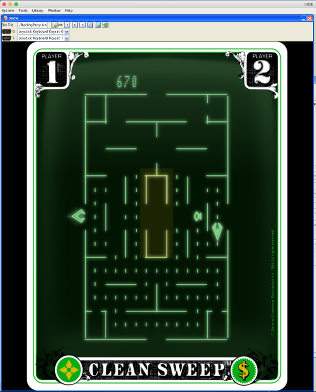
vecxi emulation window
vecxi emulation window
Emulation wise this is the heart of VIDE. In the above example you can see Cleansweep running in the emulator.
In short:
 load
load
a new vectrex file (doesn't start the emulation)
 start
start
running (if in debug mode, do a single step) (if SHIFT is held, it resets the current loaded rom)
 pause
pause
 stop
stop
(unloads the current rom)
load
well - load a state (only one savestate possible as of now)
save
save a state
Emulation and debugging wise, vecxi is the center of VIDE. Once you load a rom and start emulation, a "dissi" window will pop up (if not already open - or might "pop" into an iconified state).
From dissi you can access all other debugging utilities VIDE has to offer. . .
There are following "hot keys" available for vecxi:
"P" - toggle pause
"O" - toggle overlay
"B" - toggle ringbuffer
"1" - quicksave
"2" - quickload
if running with OpenGL than additionally:
SHIFT P: full pannel
SHIFT F: full screen
Ports
These are the Joy(stick) ports of the vectrex. Usually in port 0 the joystick is plugged in. Some cartridges need/want an additional device (mostly in port 1). These can be selected in the combo boxes. Default joystick configuration is mapped to keyboard 0 (ASDF and cursor).
In configuration→Input you can define different keyboard layouts and/or different input devices. The devices you configured there will appear in these comboboxes and will be selectable
Some features:
If in debug mode, vecxi will display the "current" drawn vector in yellow, rather than white.
If in debug mode, vecxi will display the drawn vectors in the "current" refresh cycle in BRIGHTER white than "older" vectors.
vecxi can be told (mainly usable in debug mode, otherwise there is just a "blur") to draw a small circle at the current "integrator position", so you can follow the virtual beam
vecxi can be told to draw "arrows" rather than vectors, so you can see the direction of all vectors
and much more...